Setup a printer
Guided steps on how to set up a printer
We recommend to use a ZEBRA Brand or ZPL Language compatible label printer - install the printer in your local network or connect it direct to the workstation that should print the labels.
If the printer is a ZEBRA printer with Zebra print-driver, such printer normally accepts Raw Printing as well as Postscript - the label system Forming Function use is utilizing raw printing. If you experience problem here and the printout looks like just a meaningless rows of letters and numbers, your printer doesn't support raw printing (ZPL Language).
In those rare instances where the driver doesn't support raw printing you have to install a Generic Printer with the Manufacturer set to Generic and Printer set to Generic/Text only - this printer can then be NAMED to a meaningfull Display Name so it can be easily identified.
Steps
- 1
Step 1
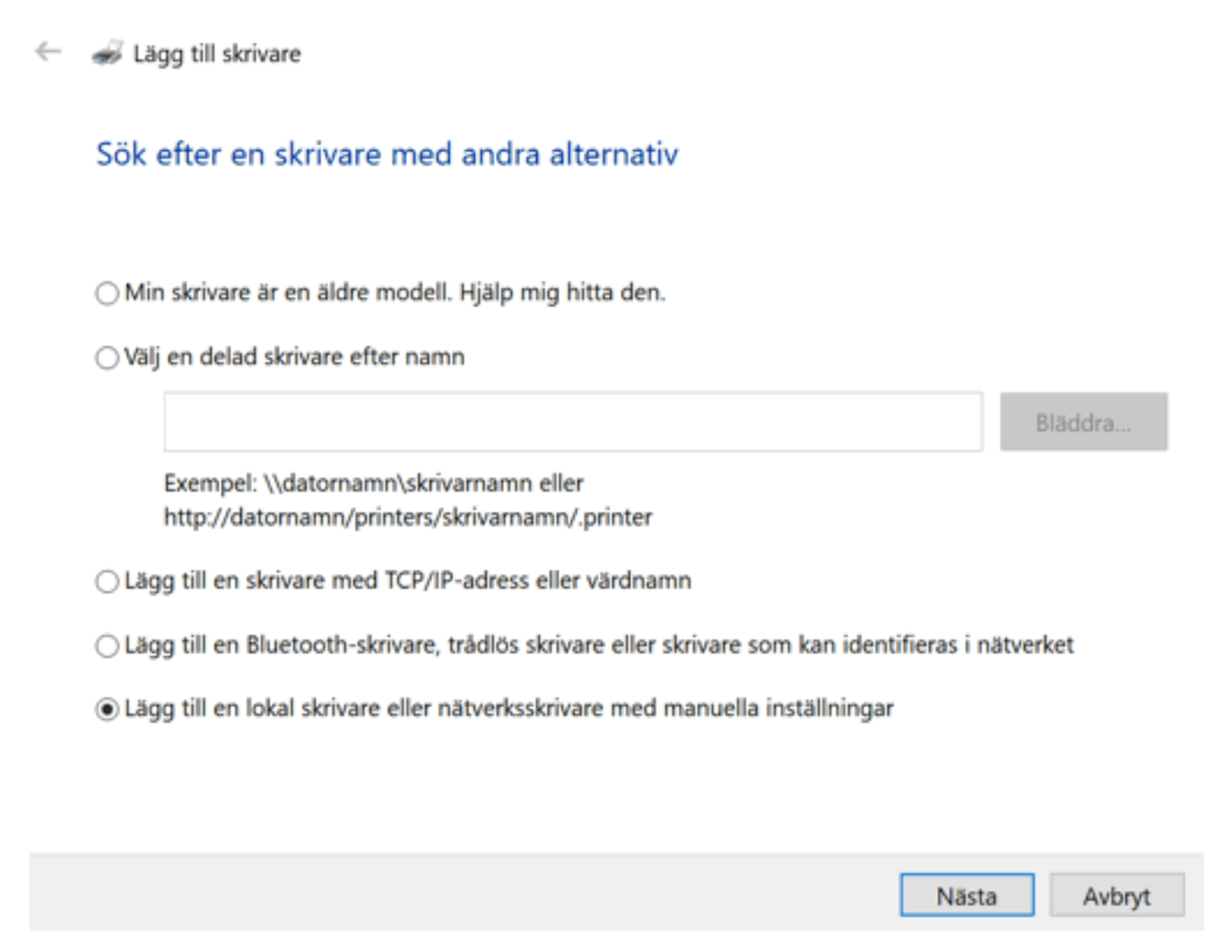
Add a printer manually
Open the Windows printer setup and choose “Add a local printer or network printer with manual settings
- 2
Step 2
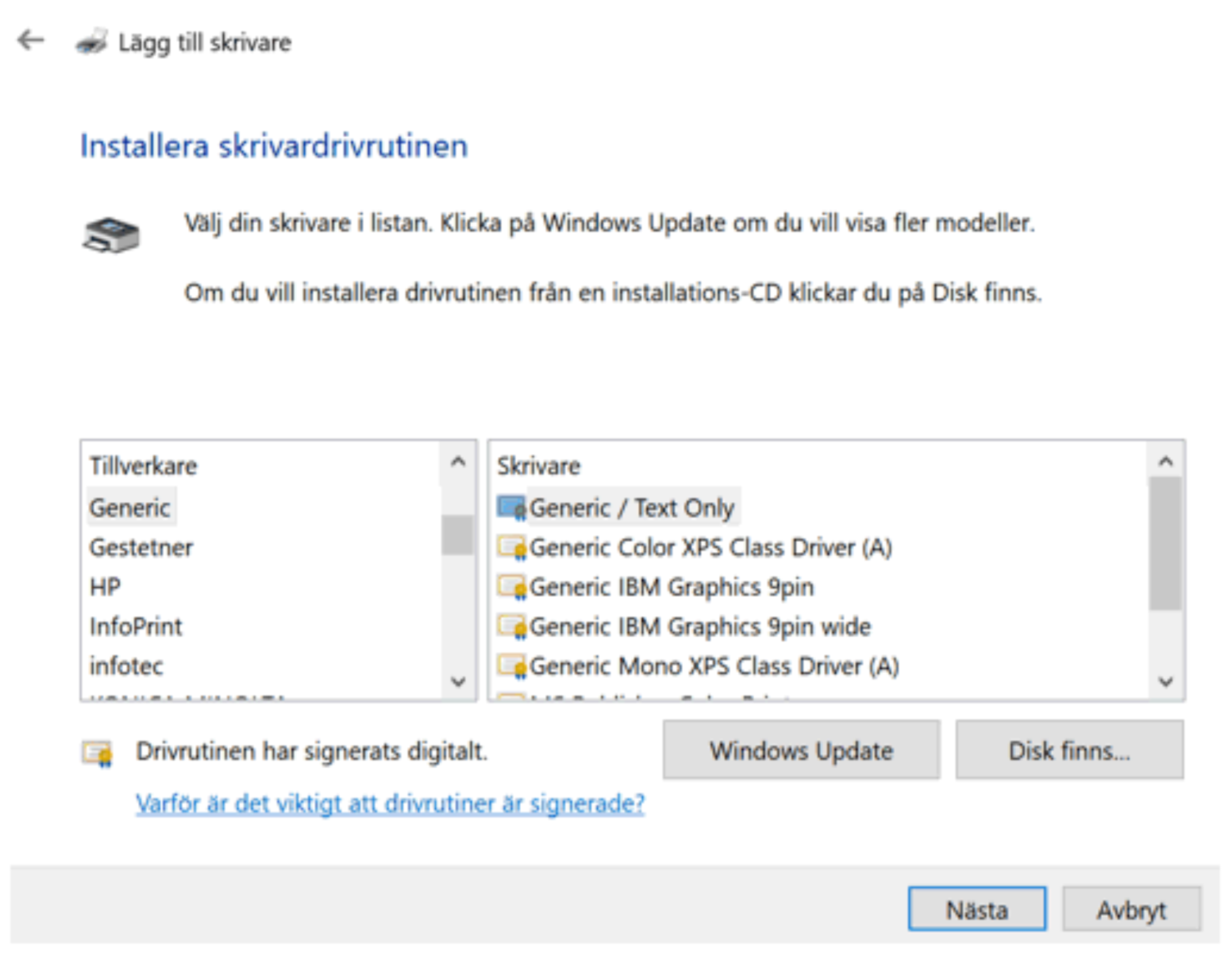
Select driver
If your Zebra printer does not support raw ZPL printing correctly, set manufacturer to "Generic" and "printer" to "Generic / Text Only"
- 3
Step 3
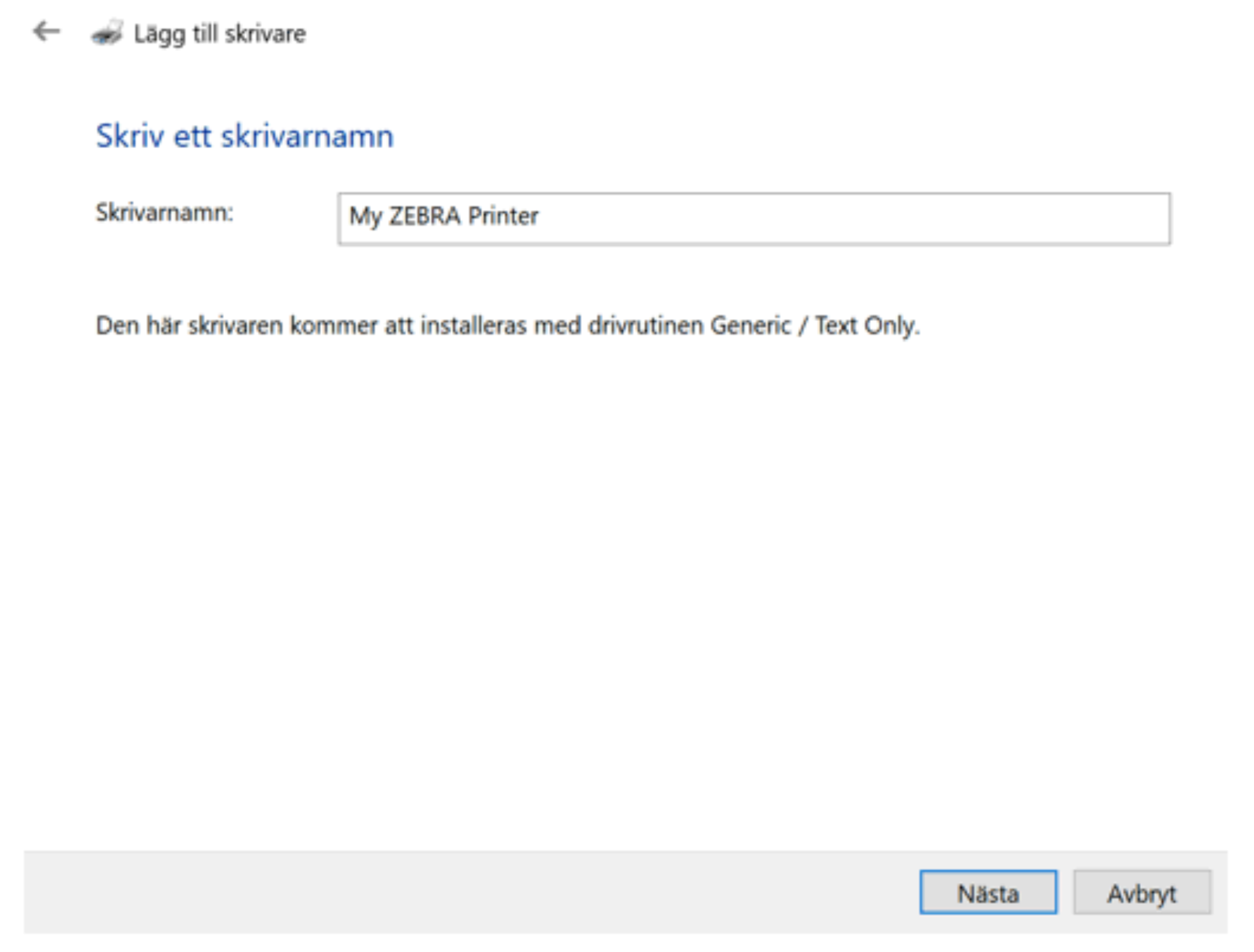
Name the printer
Give the printer a meaningful display name, such as “My ZEBRA Printer,” so it can be easily identified when printing labels.