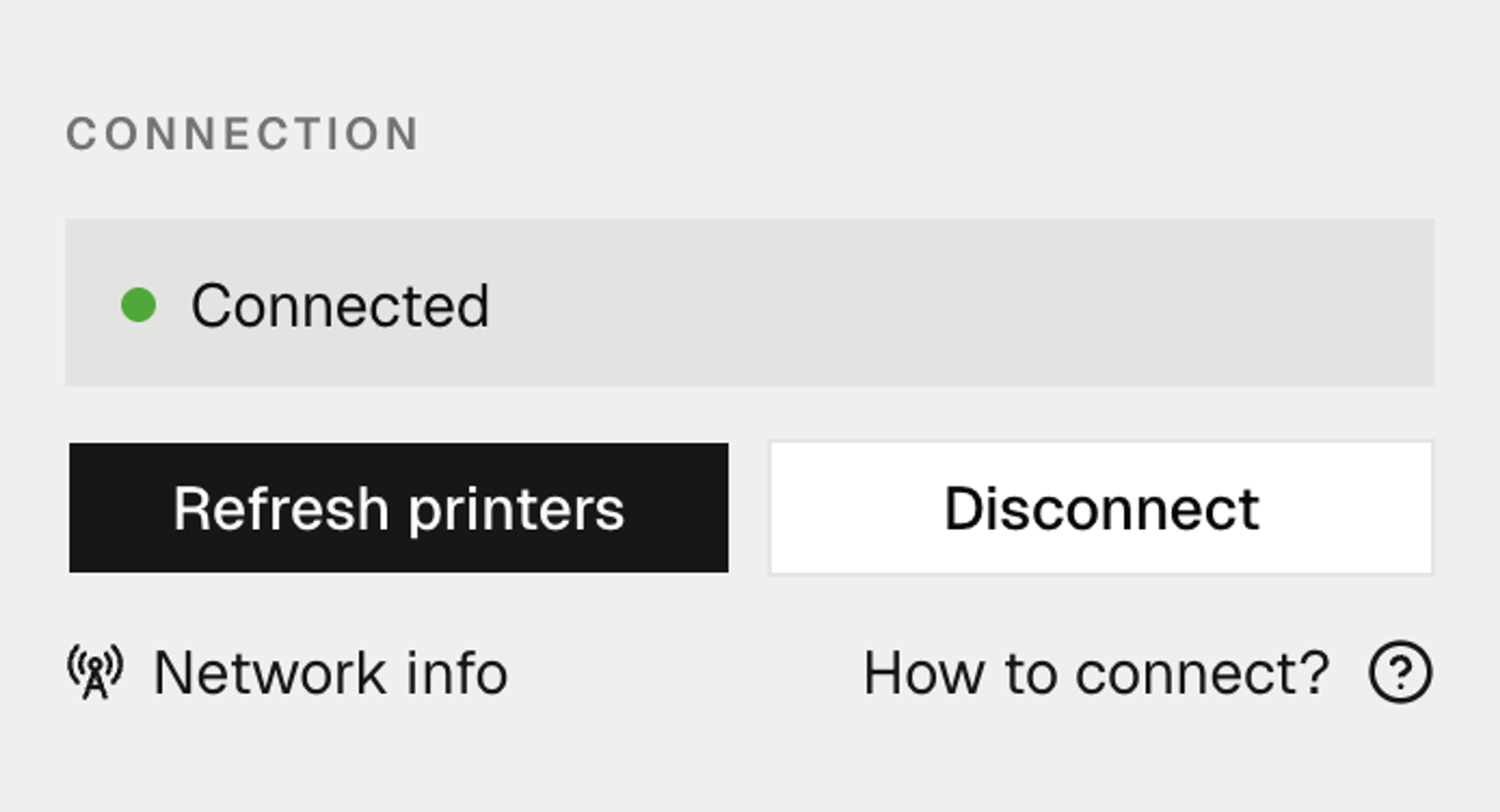
Getting started
System start (first time)
During the first time use our Label web page tries to communicate with the recently installed QZ-Tray application - this will fail since you either haven't started the QZ-Tray application - or - on some computers it automatically starts when the installation finish and in those cases you will get a security prompt (step 2 and 3 are skipped).
Steps
- 1
Step 1
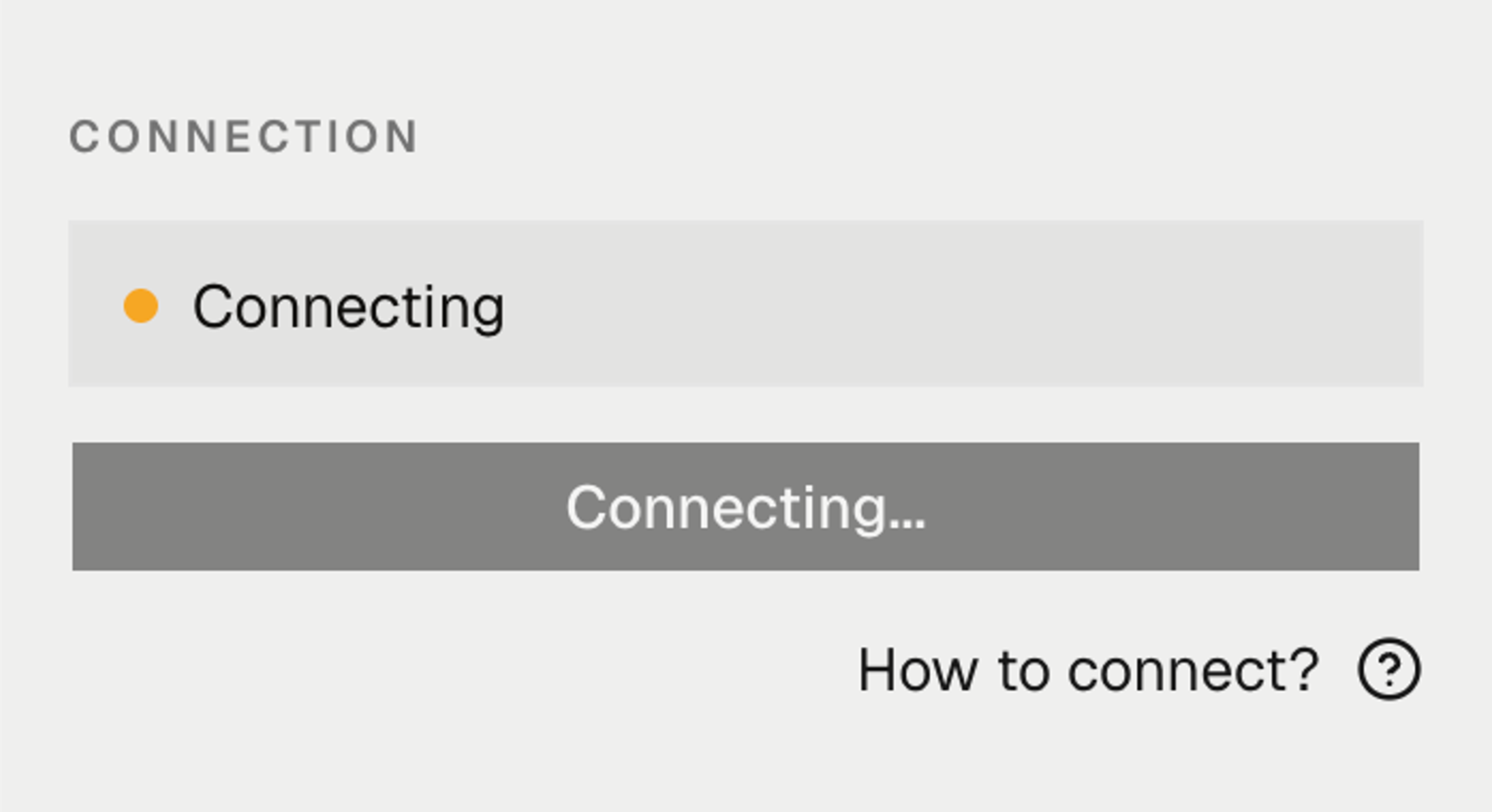
Label page tries to connect to QZ-Tray
When you first open the Label page, it automatically tries to communicate with QZ-Tray. If QZ-Tray is not yet running, this will fail and show an error.
- 2
Step 2
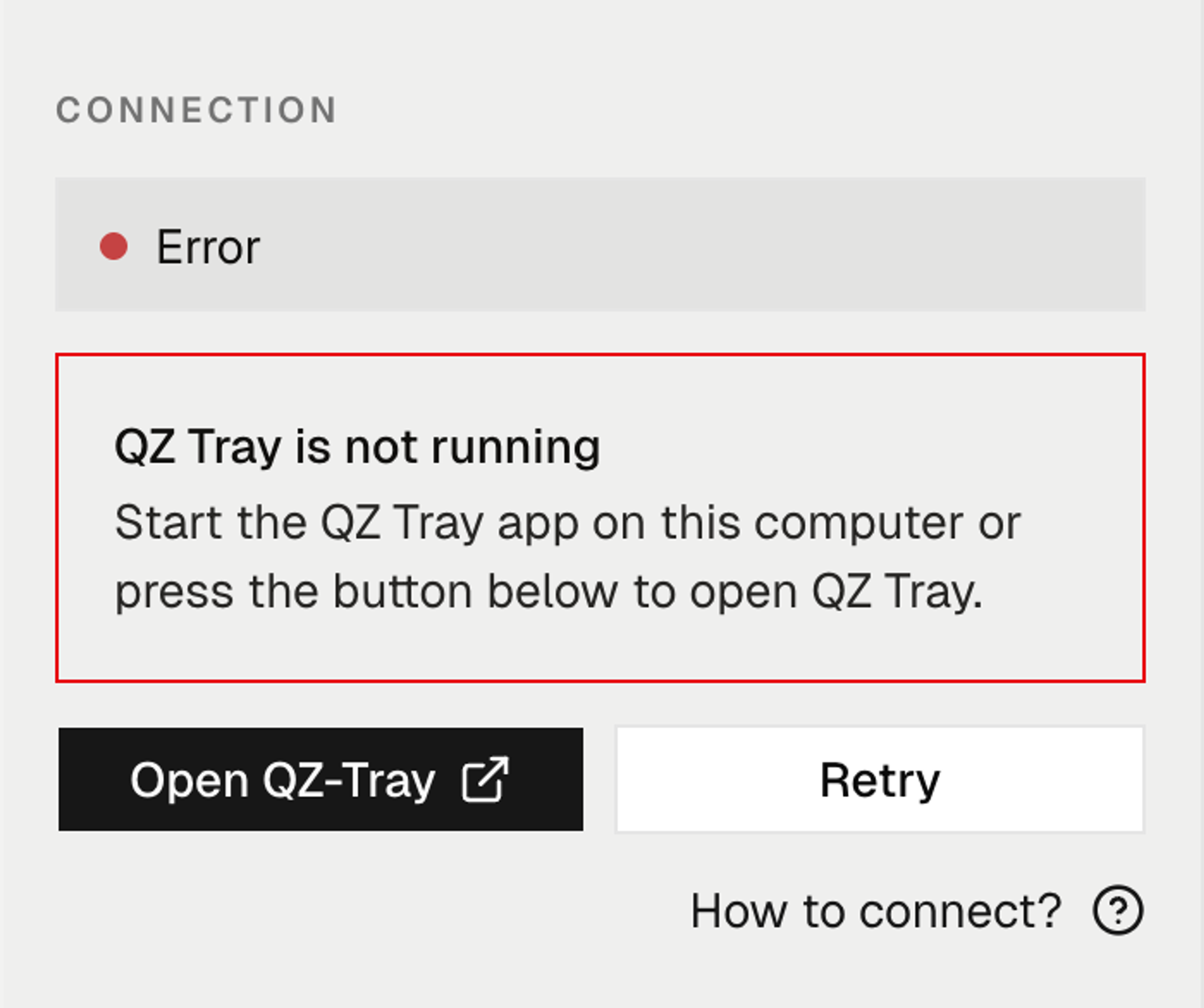
Connection error is shown
If QZ-Tray is not running, a connection error appears in the sidebar. On some computers QZ-Tray starts automatically after installation — if so, you may skip to step 4.
- 3
Step 3
Start the QZ-Tray application
Find the QZ-Tray icon in your system tray (Windows) or menu bar (Mac) and click it to launch. If you can't find the icon, search for QZ-Tray in your installed applications and open it. You can also press the "Open QZ-tray" button.
- 4
Step 4
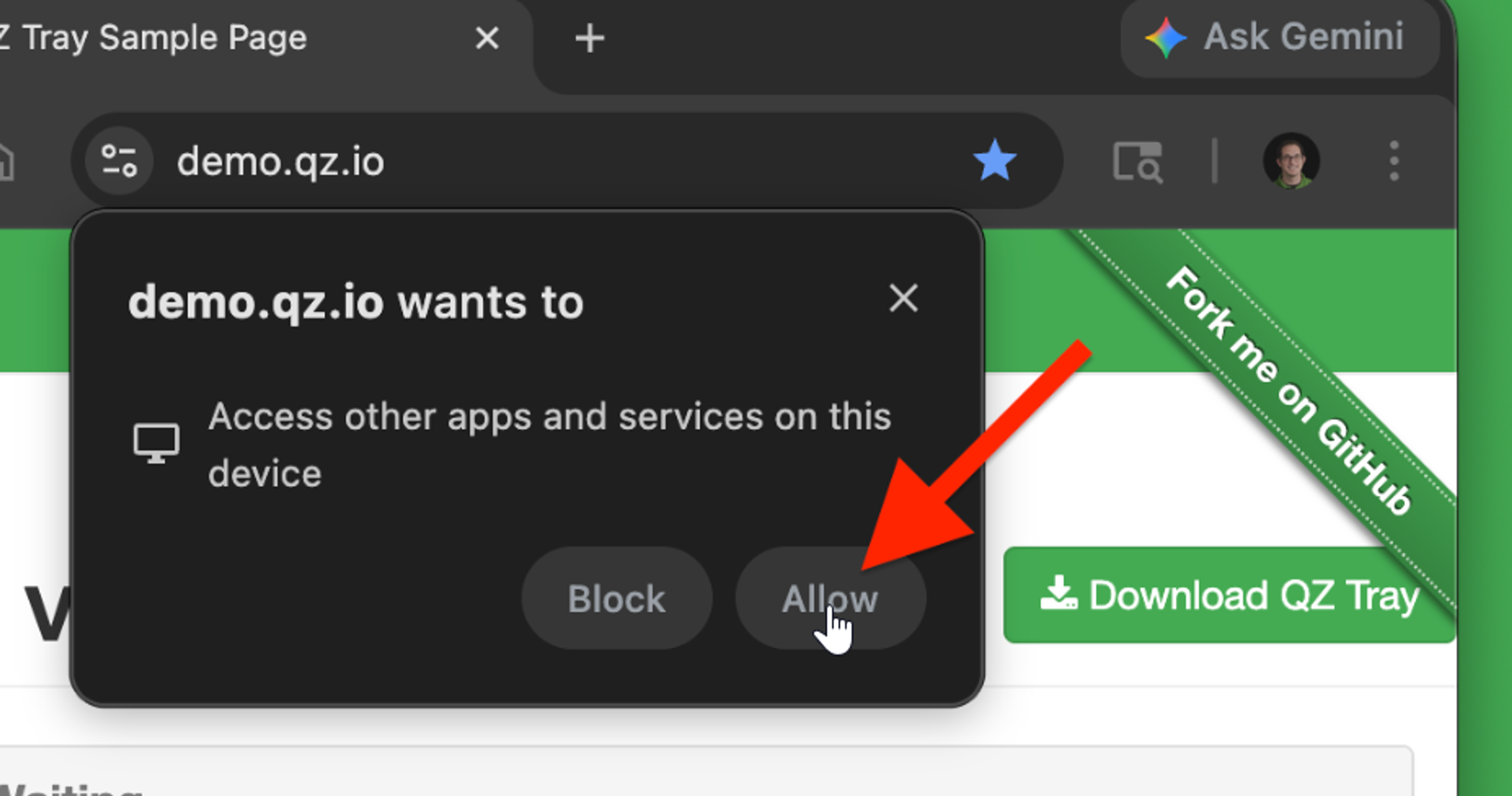
Browser prompt: Local network access (Chrome 147+)
After QZ Tray is running, the first time the site opens a connection to your local machine, Chromium may show a browser dialog about local network access (wording varies by version).You must approve this in the browser not only in QZ Tray. (If you do not see this step, your browser version or policy may not show the prompt yet. Continue with the QZ Tray steps.)
- 5
Step 5
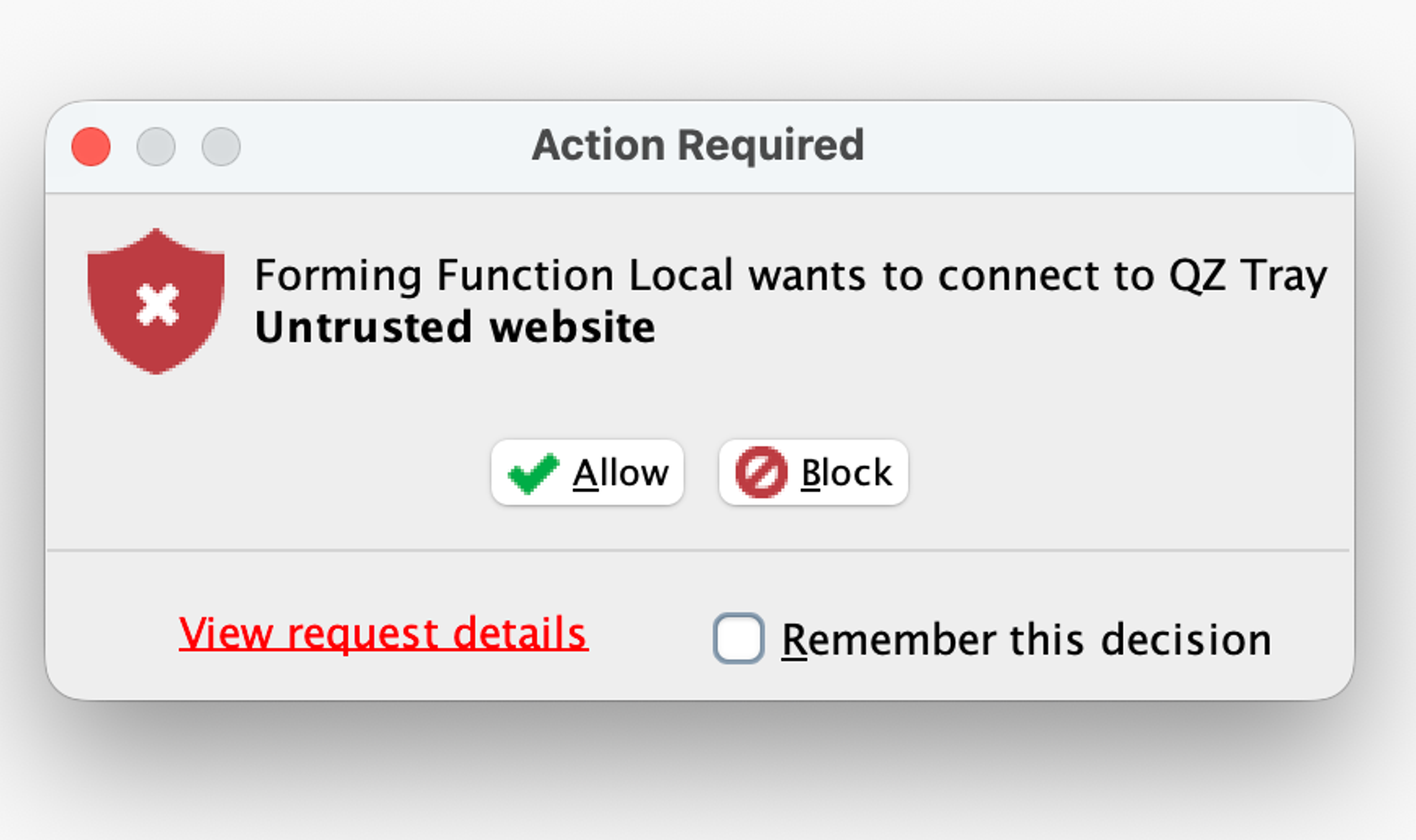
Security prompt appears on first use
The first time QZ-Tray connects to the Label page, a security dialog from QZ-Tray appears asking you to allow the connection.
- 6
Step 6
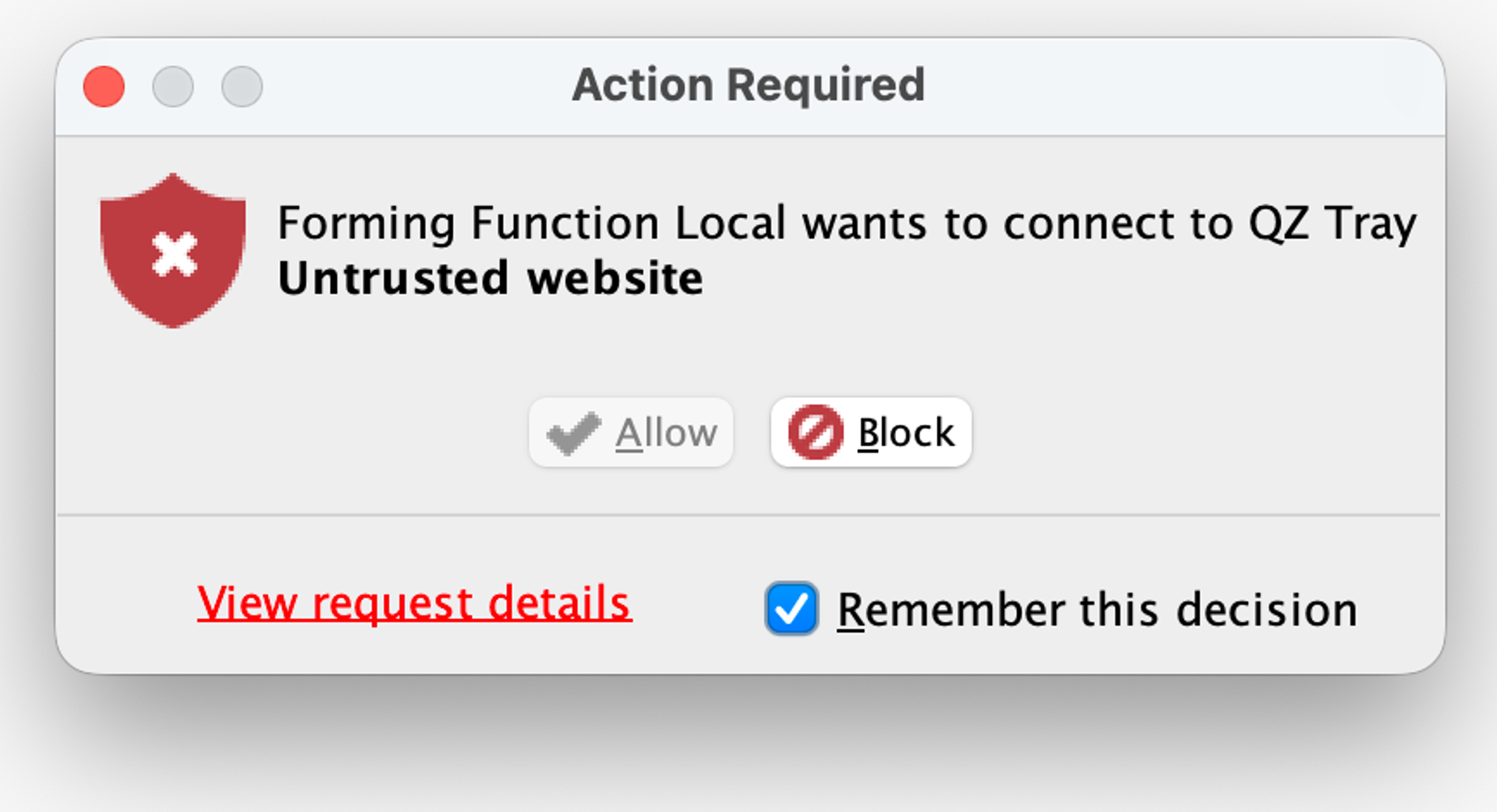
Tick "Remember this decision"
Before pressing Allow, check the "Remember this decision" checkbox — this prevents the prompt from appearing again next time.
- 7
Step 7
Press Allow to complete setup
Click Allow to trust this connection. The Label page will now connect to QZ-Tray automatically every time you open it.
All done!
From now on the connection is automatic. The connection indicator will show a connected status every time you open the Label page.