Select printer
How to select your printer
If your Zebra ZPL printer is directly attached to your computer or connected through a print server queue, it will often be selected automatically when you connect.
Steps
- 1
Step 1
Automatic printer selection
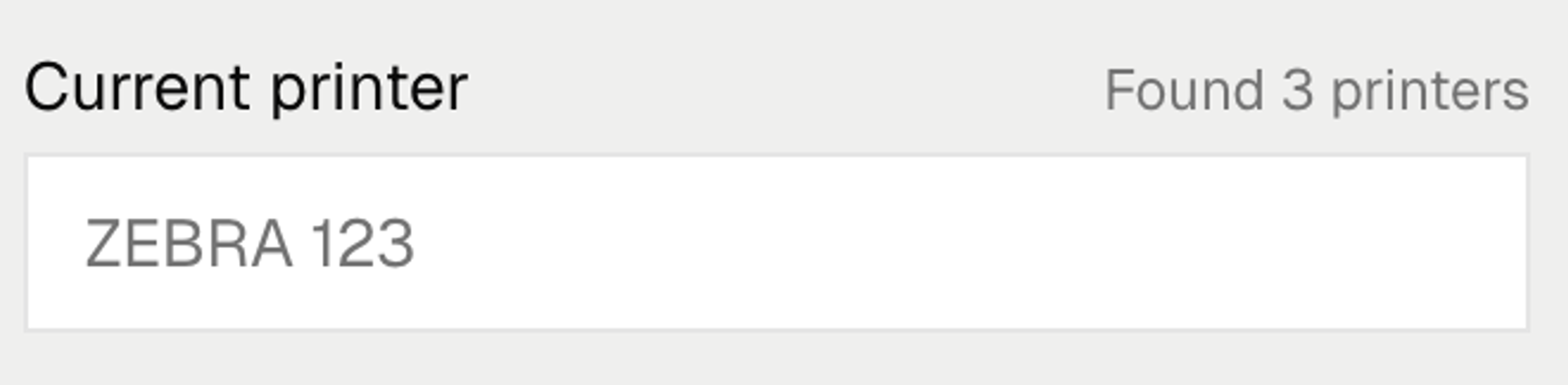
When you connect, a printer is selected automatically — the app uses your previously selected printer if available, then looks for a printer with "zebra" in the name, then falls back to your OS default printer. The selected printer will be displayed below "Current printer"
- 2
Step 2
Open the printer dialog
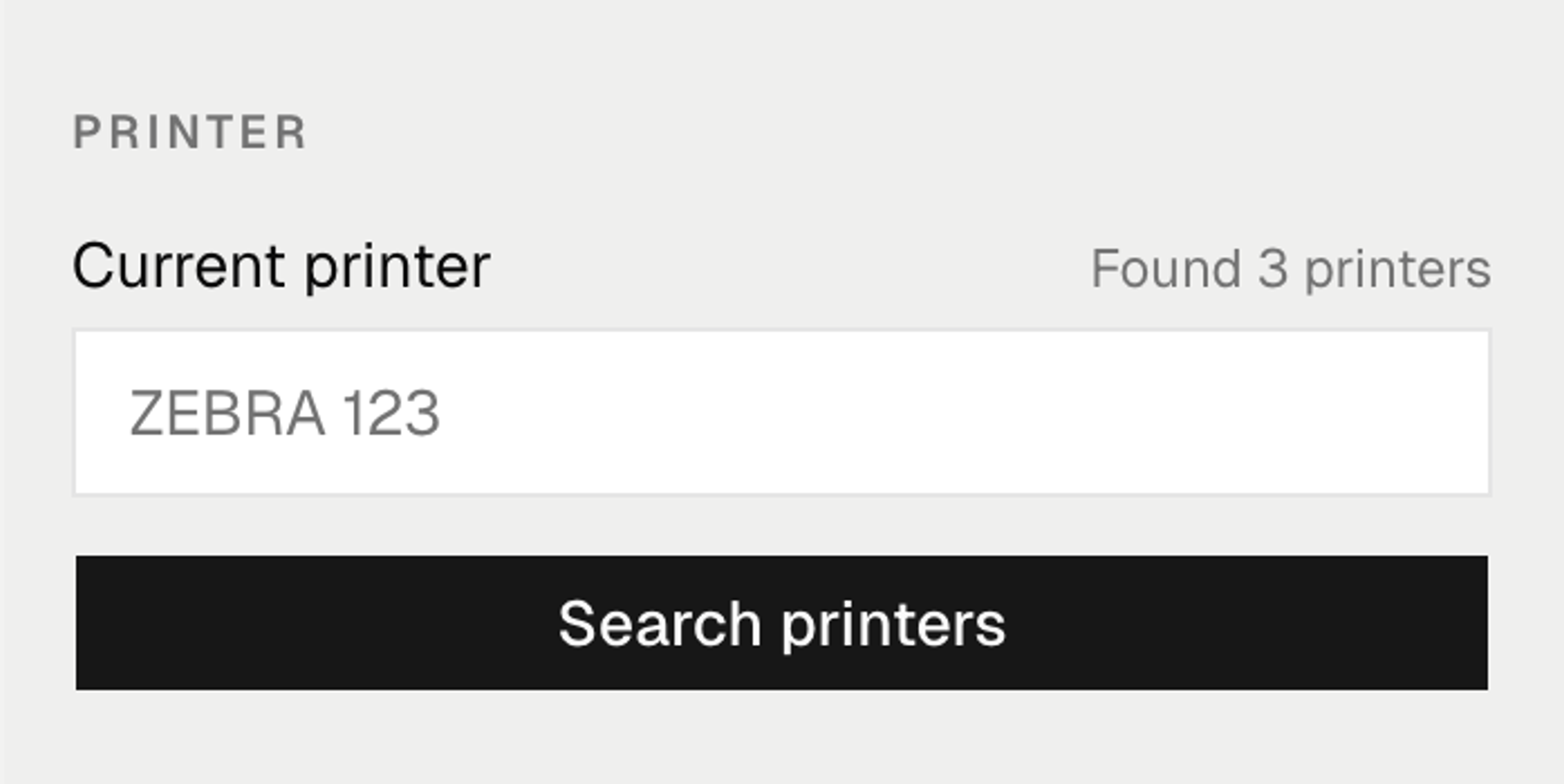
If the wrong printer is selected, or none was found, click Search printers in the sidebar to open the printer dialog.
- 3
Step 3
Filter the list
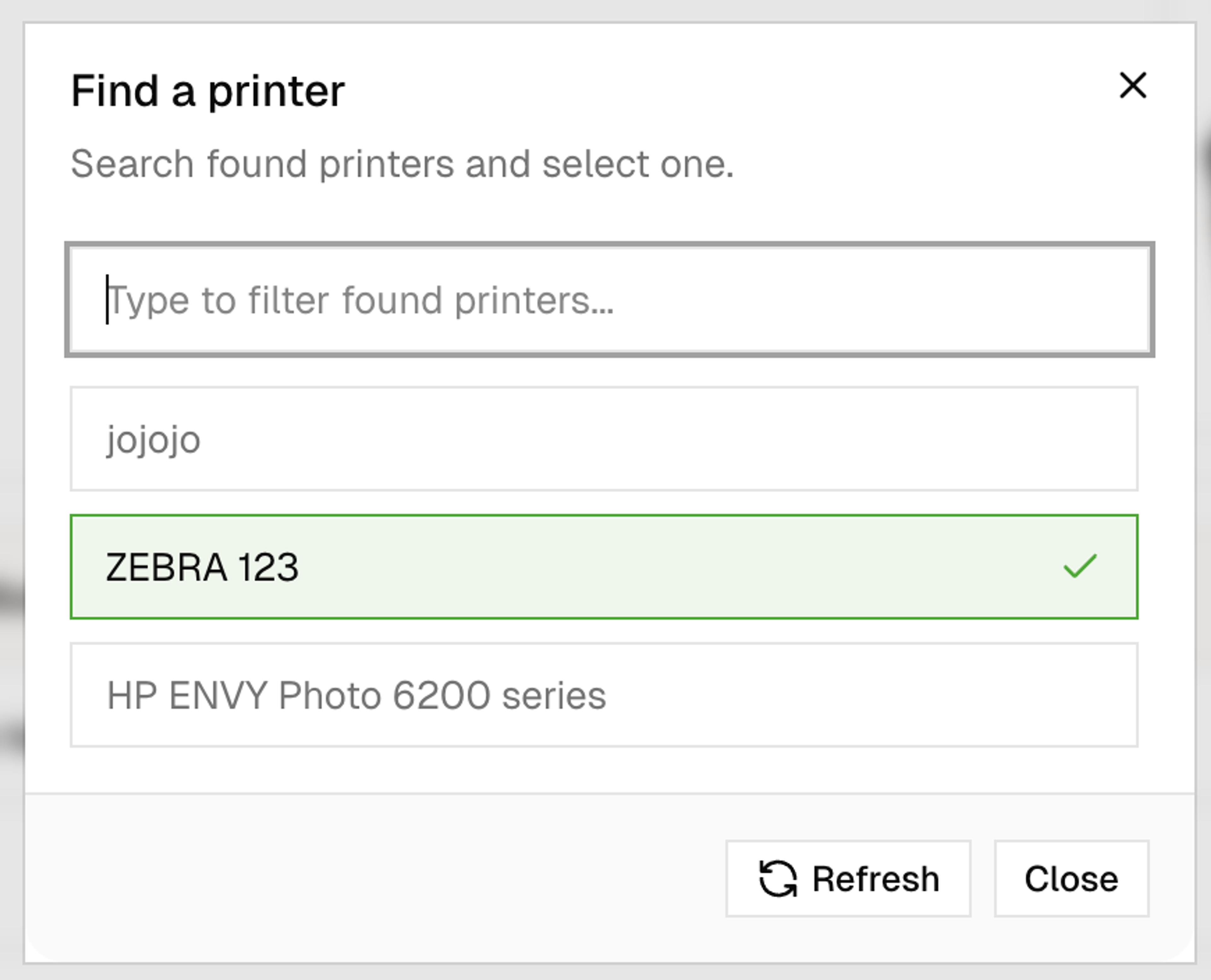
The dialog lists all printers found on your system. Type in the search box to filter by name — e.g. type zebra to narrow the list.
Select your printer
Click a printer from the list to select it. The dialog closes and it becomes your current printer.